Software by Mike Robinson   
Huge Clock Screensaver
Turn your expensive PC into a cheap clock


DownloadDownload     HomeHome     PurchasePurchase    

What is this Huge Clock thing?

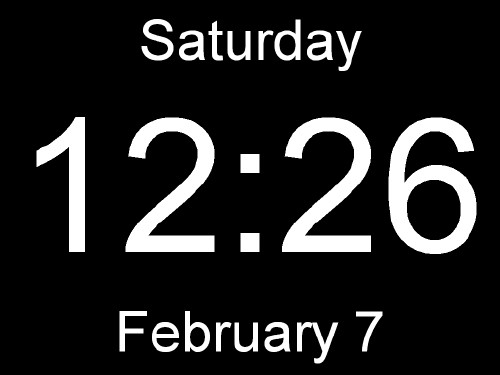
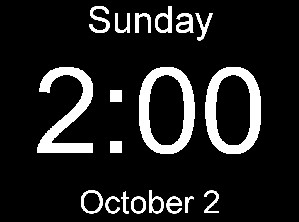
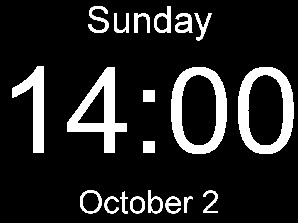
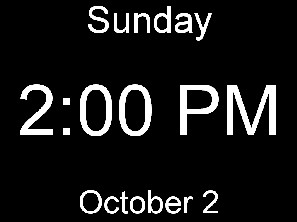
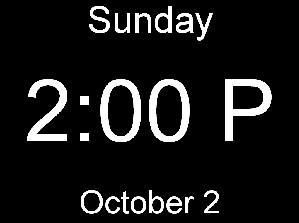
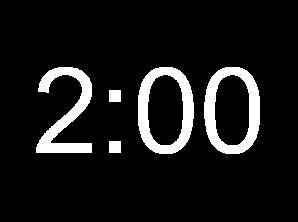
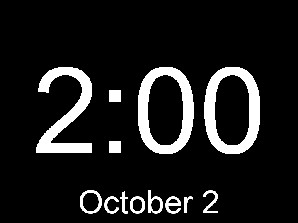
Huge Clock is a very large digital clock screensaver. The black background covers everything including the task bar on the bottom. It has no frame so there are no borders. It shows the time, date, and day of the week. That is all it does. Just a clock. But it is a huge clock man. To exit the program just press any key, click the mouse, or move the mouse. It installs both as a normal program and a real screensaver with password ability and preview in the small Windows screensaver setup screen. The display can be cutomized to show the time only, AM/PM, or 24 hour time. The display fonts, font size, and colors can also be changed. The day, date, and seconds display can be turned on or off.

My other name for this program is "The Thousand Dollar Clock" because it turns your expensive computer into a cheap clock.

This is a 32 bit program and will run on Windows ME, NT, 2000, XP, and Vista.

See the bottom of this page if you would like to purchase Huge Clock for just $10.00 (Ten US Dollars). If you purchase the program I will send you a serial number by email that will remove the nag screen. The program works fine even if you do not pay for it. There is no time limit. It will run forever. It is fully functional. No features have been removed. It contains no spyware, no advertising.

Sample Displays


Setup

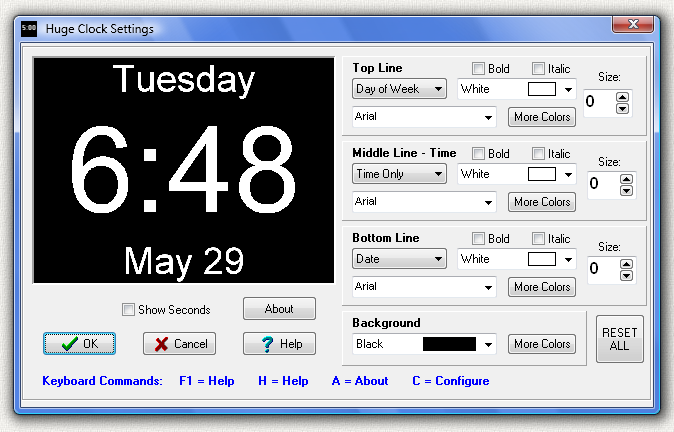
When the program is running, press the C key and this setup screen pops up:


The changes you make on this screen are shown in the preview panel on the left. Press the "OK" button and the changes will be saved and used the next time the program runs. Press the "Cancel" button and the changes will not be saved. The help button displays this help file.

Each of the 3 lines can be cutomized. The top line is usually the day of the week, but it can be changed to the date, or made invisible. The middle line (time) can be set to show just the time in 12 hour or 24 hour format. Check the "Show Seconds" check box below the preview panel and the seconds are added to the time display. The bottom line is usually the date, but it can be changed to the day of the week, or made invisible.

On each line you can select a different font and font color in the drop-down boxes. Or press the "More Colors" button to select a custom color. If you check the boxes the font can be made bold or italic. The font size can be changed using the spin edit on the right. The program automatically sets a large font size. Be careful to not set the font size too large. For example, if you set the size when the time is 5:00 be sure there is enough room to display another digit when time is 12:00.

Keyboard Commands

When the program is running you can press any one of these keys.

F1 = Shows this help file.

H = Shows this help file.

A = Shows program About information screen

C = Configure program

Install

Run the program "hugeclock-setup.exe" to install the program. This will create a folder, copy all the files to the folder, and create shortcuts on the desktop and the start menu. The setup program places the Huge Clock program "hugeclock.scr" in the Windows system folder so it will be recognized as a screensaver and appear in the Windows list of available screensavers. In Windows XP and Vista the system folder is named system32.

An alternate install method is to download the executable file "hugeclock.scr" and put it in the Windows system folder. If you use this method, then to uninstall simply delete the files.

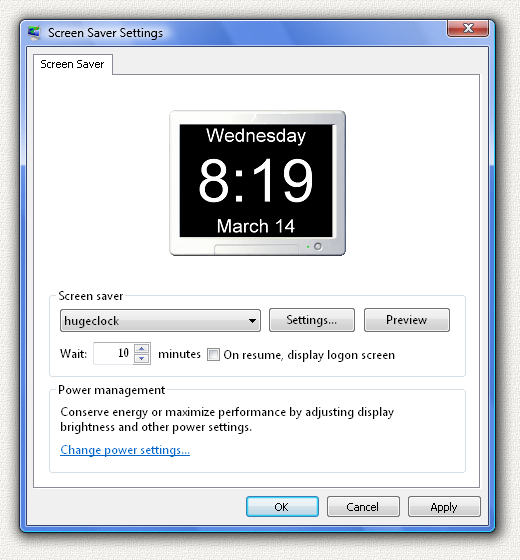
To setup Huge Clock as your screensaver right click on the Windows desktop and select the "Properties" menu item. In Windows Vista select the "Personalize" menu. Then click on "Screen Saver" and this screen is shown:


Then use the "Screen Saver" drop-down box and pick "hugeclock" from the list of screen savers. Then click OK. The "Settings" button brings up the setup screen above. The "Preview" button runs the screensaver in full screen mode.

UnInstall

Open Windows Control Panel, select Add Remove Programs, select Huge Clock in the list of programs, and click OK. The uninstall program will then run and remove the program. If you installed the program manually then delete the files to uninstall the program.

Running as a Program

Click the desktop Huge Clock icon and the program will run and show the clock. If you use Huge Clock in this normal program mode, that is not as a screensaver, your normal screensaver will kick in and appear over (and hide) Huge Clock.

Legal Stuff

This program is Copyright © 2004 Michael Robinson.  All Rights Reserved.  Use this program at your own risk.  If you purchase this program and are not satisfied with it for any reason I will refund your money. You may give this file away free, but you may not sell it.  It must be distributed as a package along with all files.  Modification of the executable file is prohibited.

Revision History

1.0.0.0  Feb    8, 2004  Initial public release.
2.0.0.0  Oct    9, 2005  Added screensaver install and display options.
2.1.0.0  Mar 14, 2007  Updated for Windows Vista
2.3.0.0  May 28, 2007  Updated for Windows Vista


Purchase    

If you purchase the program I will send you a serial number by email that will remove the nag screen. Pay once and all future upgrades are free. The program works fine even if you do not pay for it. There is no time limit. It will run forever. It is fully functional. No features have been removed. It contains no spyware, no advertising.

If you purchase this program and are not satisfied with it for any reason I will refund your money.

The purchase price is $10.00 (Ten US Dollars). I accept major credit cards, PayPal , or personal checks. You can use PayPal to pay by credit card even if you do not have a PayPal account. The total cost to you is $10.00. No fees. Use your Visa, Mastercard, American Express, or Discover card. PayPal also allows you to pay directly from your bank account using eCheck.

Pay with credit card or PayPal Use your Credit Card.

  Pay with credit card or PayPal Or send payment by PayPal to: ElegantPie@HotMail.com

Or send personal check or money order payable to Michael Robinson

Michael Robinson
PO  Box  95
Shelton,  CT  06484

Please add $10.00   if you would like a CD sent by US Mail to an address in the USA.
Please add $20.00 if you would like a CD sent by US Mail to an address outside the USA.

Official PayPal Seal   I am PayPal Verified.   My Account Creation Date is May 30, 2000.

The Official PayPal Verified Seal above means that I have provided PayPal with proof that I have a bank account and that my address is valid. Banks are required by law to screen account holders so PayPal's verification process increases security when you pay parties you do not know. My bank has my address and Social Security number on file. You can check that I am verified by clicking the PayPal Verified Seal above or by clicking on this link:

https://www.paypal.com/us/verified/pal=elegantpie%40hotmail.com

I use PayPal because the fees are low. If you send me $10.00 PayPal only takes about $0.59 so I net $9.41. All other payment services take several dollars so I would have to charge around $15 for my program to gain the same net. This lowers the cost to you. PayPal is usually free for most transactions, such as Ebay auction payments, but as a business I am required to have a Premier Account with fees. If you do not have a PayPal account, you can still use PayPal to make a payment using your credit card or a direct withdrawal from a bank account. PayPal is a very secure and reliable payment system used by millions of people around the world. All of your personal information is encrypted.


DOWNLOAD       PURCHASE    HOME    EMAIL   


elegantpie@hotmail.com

http://www.elegantpie.com